

I'm sure you've had times where Siri has misheard you. Where it autocorrects your request into something you didn't say. Or it just gives up entirely. "Sorry, I didn't get that."
Yeah, same.
It's one of the reasons a lot of us quietly stopped using Siri altogether. The experience kept letting us down at the worst moments.
There's also the environmental problem. Talking to your phone isn't always an option if you're at the office, in a quiet room with a sleeping kid, or on public transit. Besides, who wants to be that person?
Type to Siri doesn't have that problem, and I've found it to be way more reliable.
How to turn it on
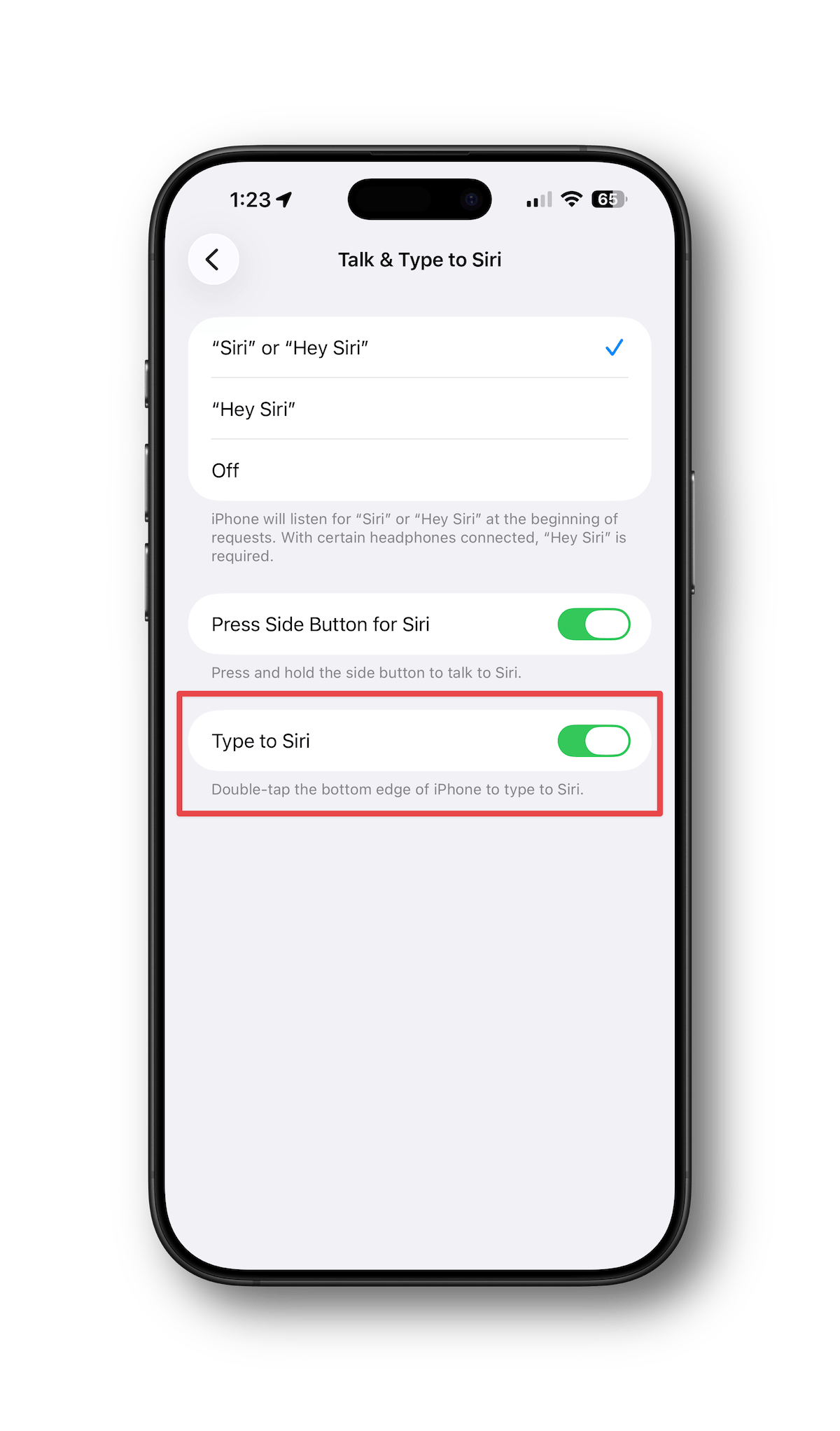
Type to Siri is exactly what it sounds like: instead of speaking to Siri, you type your request.
Type to Siri has been around as an accessibility feature for a while now, but on devices running Apple Intelligence, Apple has moved it into a more prominent location.
Here's where to find it now:
- iPhone and iPad: Settings > Apple Intelligence & Siri > Talk & Type to Siri > toggle on Type to Siri.
- Mac: System Settings > Apple Intelligence & Siri, then look for the keyboard shortcut option in the Siri Requests section.
- Apple Watch: Watch app on iPhone > My Watch > Accessibility > Siri > Type to Siri.
- Note: While Type to Siri is supported on Apple Watch, you'll be better off using it on your phone if you have it with you.
If you have Apple Intelligence turned off, or if your device doesn't support it, the setting is still available under Settings > Accessibility > Siri > Type to Siri.
Heads up: the experience is more limited without Apple Intelligence enabled, and activation works differently (press and hold the side button).
How to Activate It
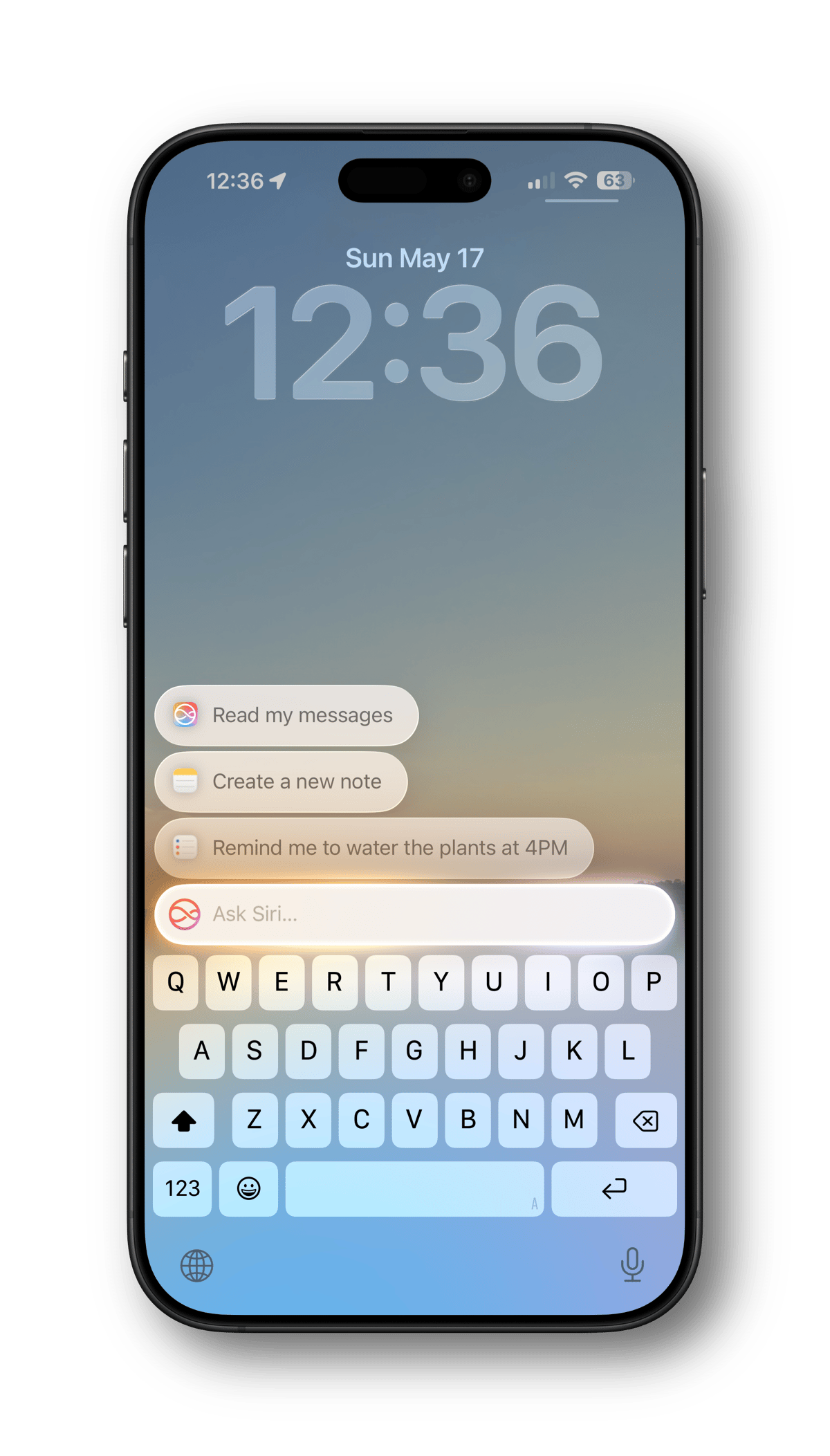
Once it's on, you invoke Type to Siri with a gesture or keyboard shortcut, depending on the device you're using.
- iPhone and iPad: Activate Type to Siri by double-tapping near the bottom of the display, then type your request instead of speaking.
- Mac: Use your Siri keyboard shortcut (I use a double-press of the command key), then type your request.
- Apple Watch: Press and hold the Digital Crown, tap Type to Siri, and enter your request using the watchOS keyboard.
What You Can Do With It
Here's where it gets interesting.
When you invoke Siri with Type to Siri on, it doesn't just wait for you to start typing. The first time you use it, it immediately shows suggestions based on common actions. Before you've typed a single letter, you might see "Play my Discovery Station," "Play a podcast," or "Remind me to water the plants at 4PM." Tap one, and it's done.
Start typing and the suggestions update in real time.
- Type "Email" and you'll see options like "Do I have any unread emails?"
- Type "Play" and your playlists and music apps surface.
- Type any app name, and it opens instantly.
I'm using it regularly to add items to our grocery list and set one-off tasks in Reminders, send messages without opening the Messages app, and set Focus modes.
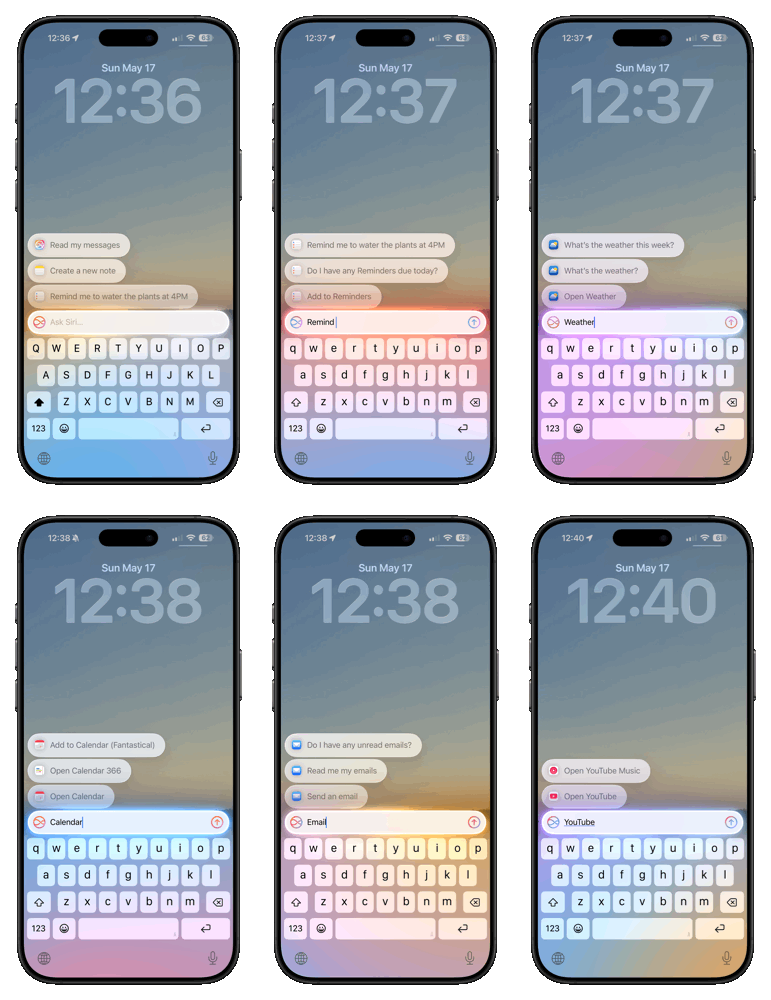
Some things worth trying:
- Notes: "Add a note" or "Open my Health note"
- Reminders: "Remind me to..." with a time or location
- Messages: "Message [name]..."
- Email: "Do I have any unread emails?"
- Music: "Play my Gym playlist"
- Apps: Type any app name to open it directly
You don't need to be on the home screen to activate Type to Siri. You can do this while an app is open, and the app may offer suggestions for what you can do with Siri.
Not a Cure
I'll admit this is a bit of a band-aid solution. After all, Siri's main purpose is to be a voice assistant, so you can do things hands-free. But if Siri has ever timed out on you, misheard you, or just wasn't an option because talking to your device wasn't practical, this will help.
Give it a try this week and let me know what you think.