

Last summer, I went on a cruise with my wife's side of the family to the Bahamas. There were 25 people in total in our large group.
Coordinating lunch and evening plans meant a lot of back-and-forth in Messages.
Sure would've been handy to have Apple's new Poll feature back then — something that arrived later in the fall with the latest OS updates.
Here's how it works.
Requirements to start, see, or vote in a poll
- iOS 26, iPadOS 26, macOS Tahoe 26, visionOS 26, watchOS 26.
- If someone is running an older OS or using a different platform (like Android), they'll see a message that a poll was sent — they won't be able to vote.
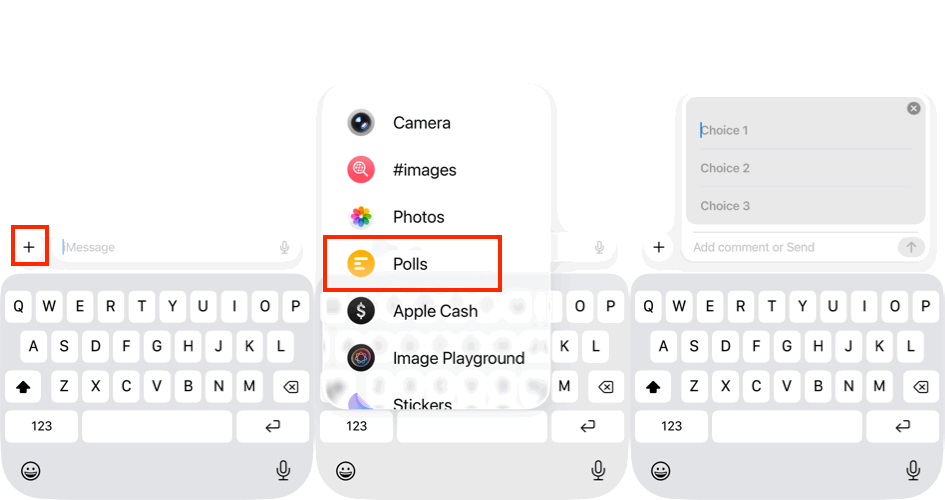
Creating and sending a poll is very simple
- Open Messages and locate the conversation you want to send the poll in, or start a new conversation and add your recipients.
- Tap the + button and then tap Polls.
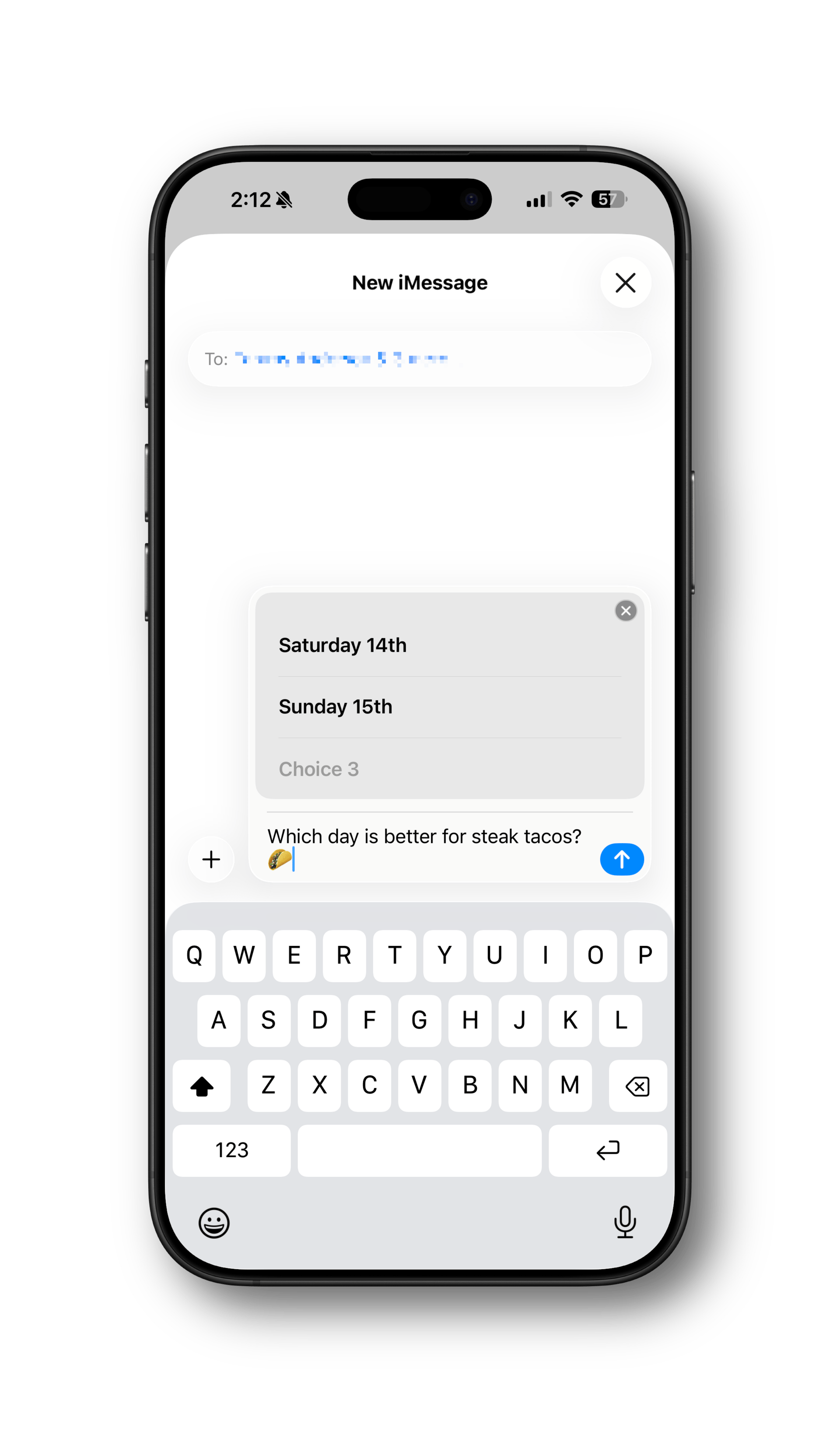
- Add your poll choices, up to 12 total.
- Tap the Send arrow to send the poll.
- After you send the poll, anyone in the chat can add other choices as long as you haven't maxed out at 12 already.
- Adding a choice doesn't add a vote for it; you'll need to tap it to add a vote.
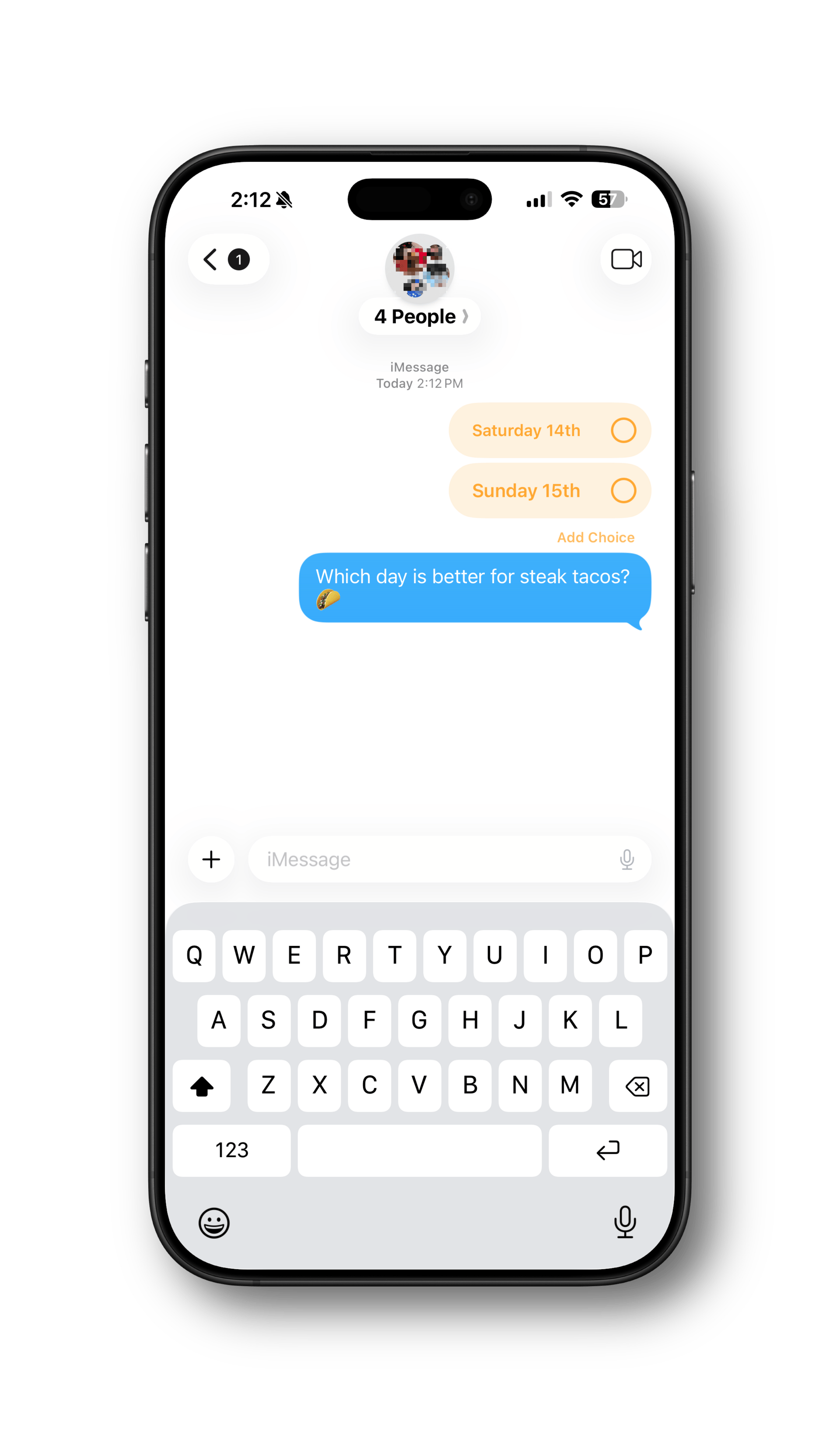
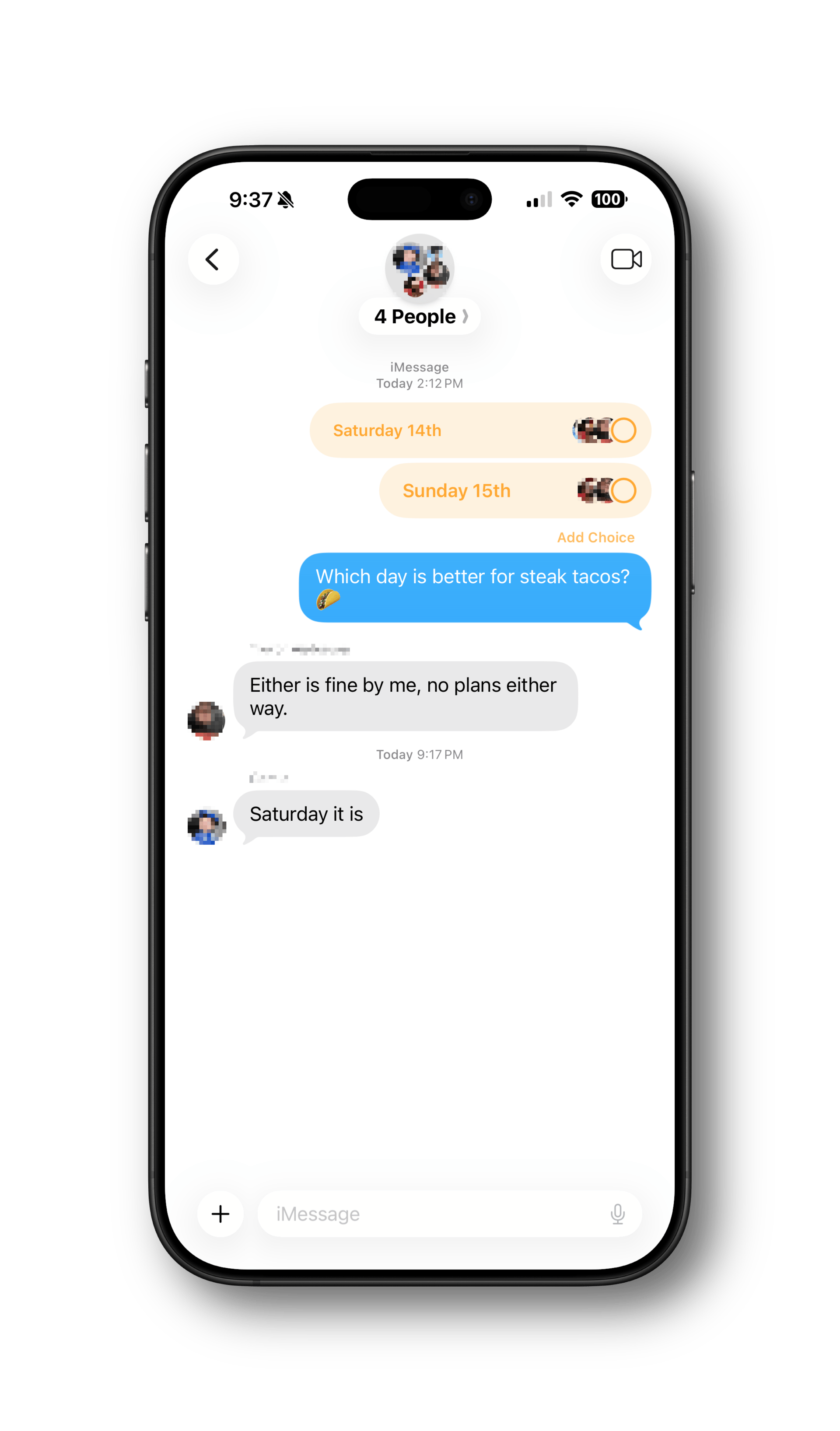
Voting and Results
- Voting is as easy as tapping on the options you want.
- Tap again to remove a vote.
- To see the votes, tap and hold on the poll, then tap Poll Details.
If you spend any time coordinating plans in group chats, polls are definitely worth using.
Bonus Tip: Rearrange apps in the Messages app drawer
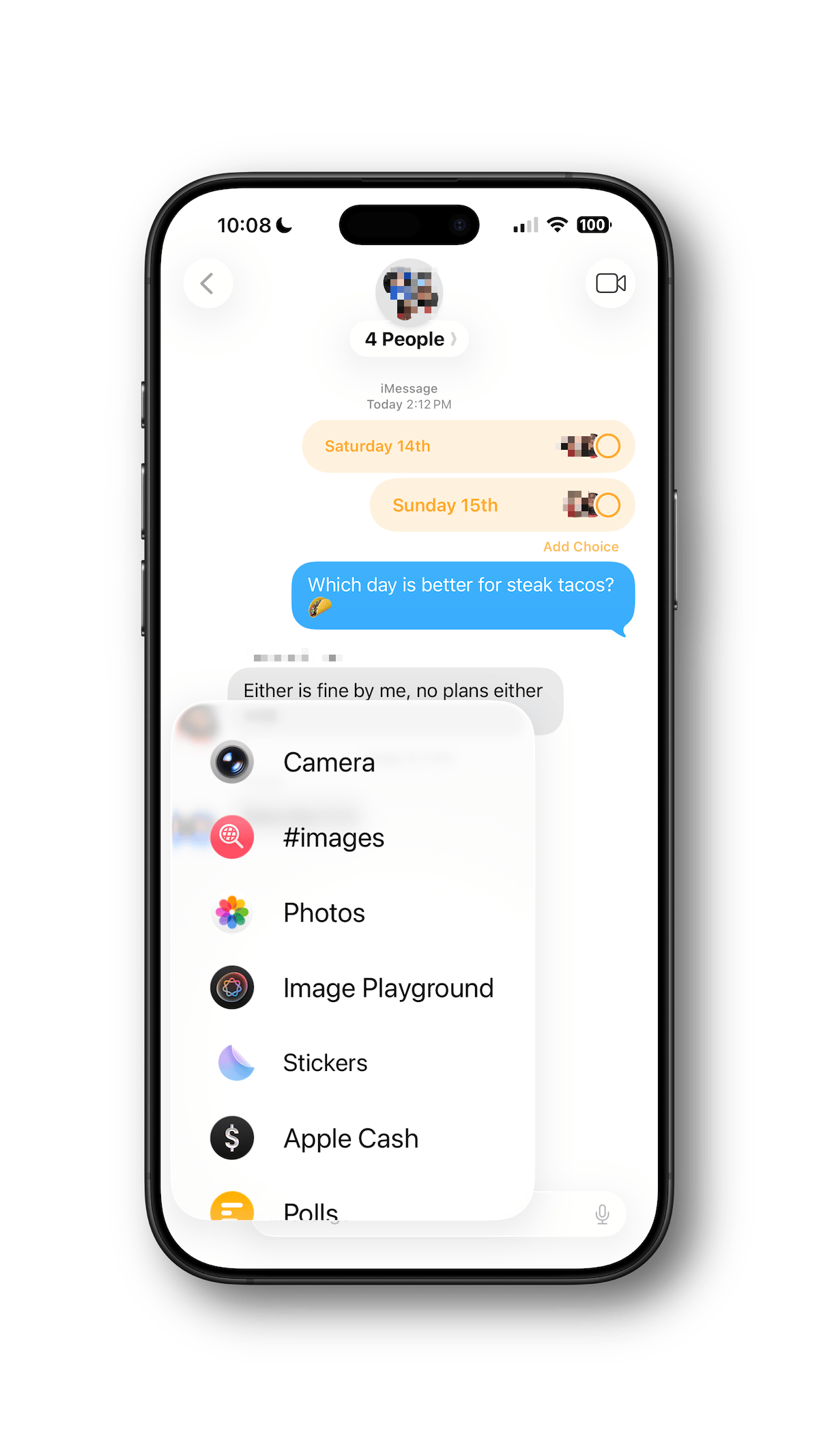
On iOS and iPadOS, you may have noticed that when you tapped the + button, a bunch of apps appeared in the app drawer. Apple provides over a dozen, including some you'll likely never use, and third-party apps are available, too.
That can get messy. Here's how to arrange the list so your most-used apps are right at your fingertips.
- Go to a conversation in Messages, or start a new one.
- Tap the + button to show the app drawer.
- Tap and hold an item in the list until it shrinks a bit (you'll also get haptic feedback).
- Drag the item up or down to arrange the list as you'd like.
To keep your list tidy, you can disable third-party apps you don't use.
- Go to Settings > Apps
- Tap on Messages and then iMessage Apps
- Slide the toggle for any apps you want to remove from the drawer
This is one of those features Apple hides just well enough that people miss it.
Bonus Tip #2: Quick Access to Photos
Here's another one that's hidden. If you want to quickly send a photo in a Messages chat in iOS and iPadOS, tap and hold on the + symbol to go directly to the photo picker.