

In this edition, we'll examine Visual Intelligence, which is part of the Apple Intelligence suite and was introduced in iOS 18.2 last month. Remember that Apple Intelligence is in beta, so features and capabilities may change.
So what is Visual Intelligence? It's an assistant you launch with the Camera Control button that uses the iPhone's camera and AI to help you learn more about the things around you. Point the camera at the object, and then tap "Ask" or "Search" to learn more about it.
Let's take a look at the key features and functions:
- 🔗 Object Lookup: Gain instant information about places, products, or landmarks.
- 🏢 Business Info: Check hours, services, and contact details, and in some cases, see a menu, call, or place an order.
- 📝 Text Interactions: Translate, summarize, or have text read aloud.
- 📅 Quick Actions: Call numbers, start an email, and create calendar events.
- 🔍 Image Search: Performs a reverse image lookup on Google.
To use Visual Intelligence, you'll need to meet the following system requirements:
- Apple Intelligence must be available in your country
- iPhone 16 model (Camera Control button is exclusive to these models)
- iOS 18.2 or later
- ChatGPT enabled in iOS Settings > Apple Intelligence & Siri, which is required to use the "Ask" feature
- As with other Apple Intelligence features that integrate ChatGPT, you can enable the service without having a ChatGPT or OpenAI account.
Without enabling ChatGPT, the tool is quite limited in what it can do. The Search option is limited only to Google reverse-image searches.
If you have a ChatGPT account and sign in to it in iOS Settings, each interaction with Visual Intelligence where you've used the "Ask" feature will be added to your chat history in ChatGPT. The entire Visual Intelligence conversation will be added to a single chat record in ChatGPT. If you close the session and start a new one, a new chat record will be saved in ChatGPT.
Tip: In the Visual Intelligence app, avoid tapping on the photo or anywhere other than buttons, the copy icon in the results, or the keyboard. Doing so will cause the app to close the session and return to the launch/capture screen and you'll have to start again.
How It Works
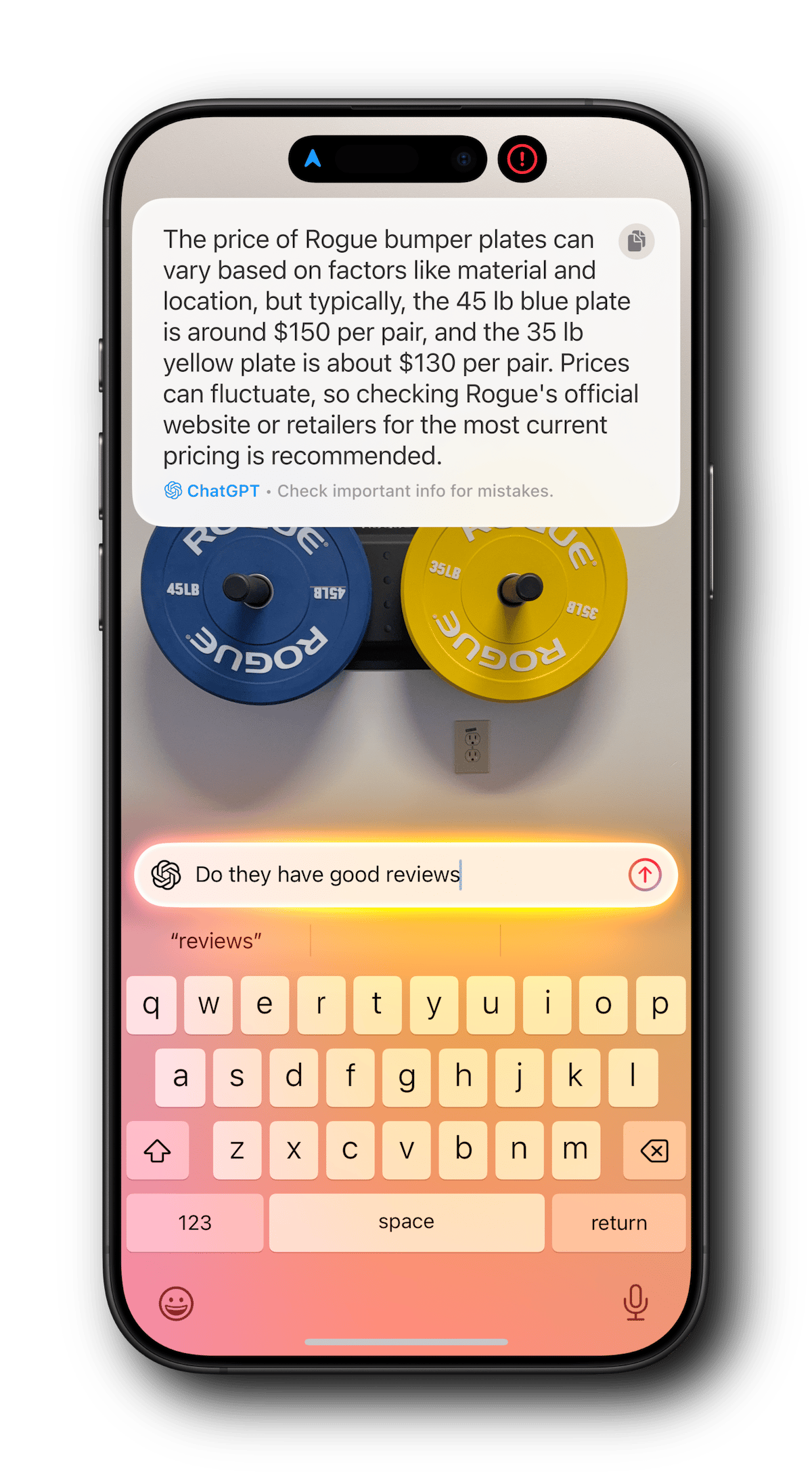
Let's walk through an example by asking Visual Intelligence about the weight plates I have mounted on the wall in my garage. Afterward, I'll ask about them directly in the ChatGPT app so you can see the different approaches between the services.
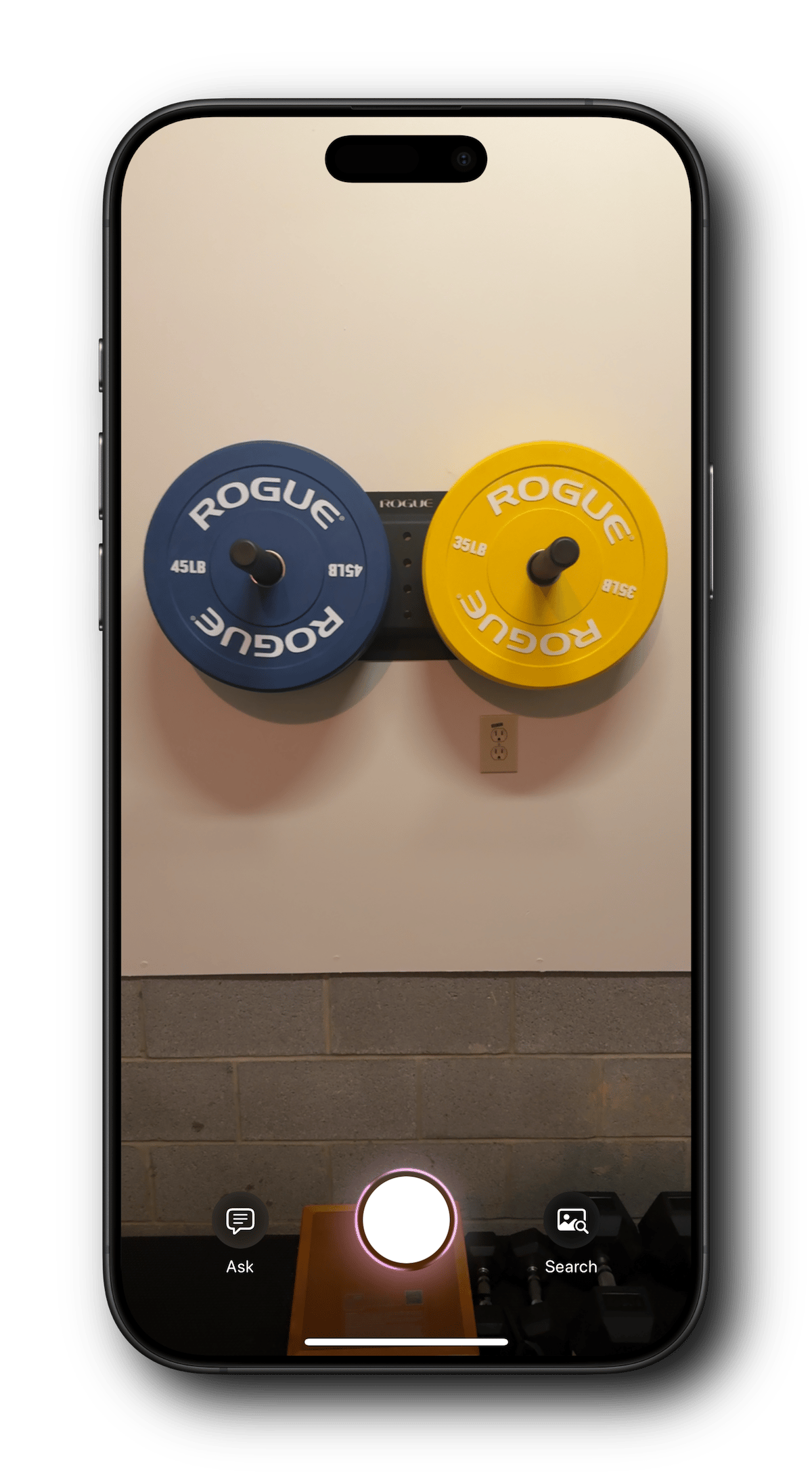
After launching Visual Intelligence by long-pressing the Camera Control button, you're presented with this simple interface. You simply point the iPhone at the item and tap Ask, Search, or the white shutter button (and then Ask or Search). In this example, I tapped on Ask to use ChatGPT.
The image is processed and ChatGPT returns some information. At this point, you can ask follow up questions to continue the conversation.
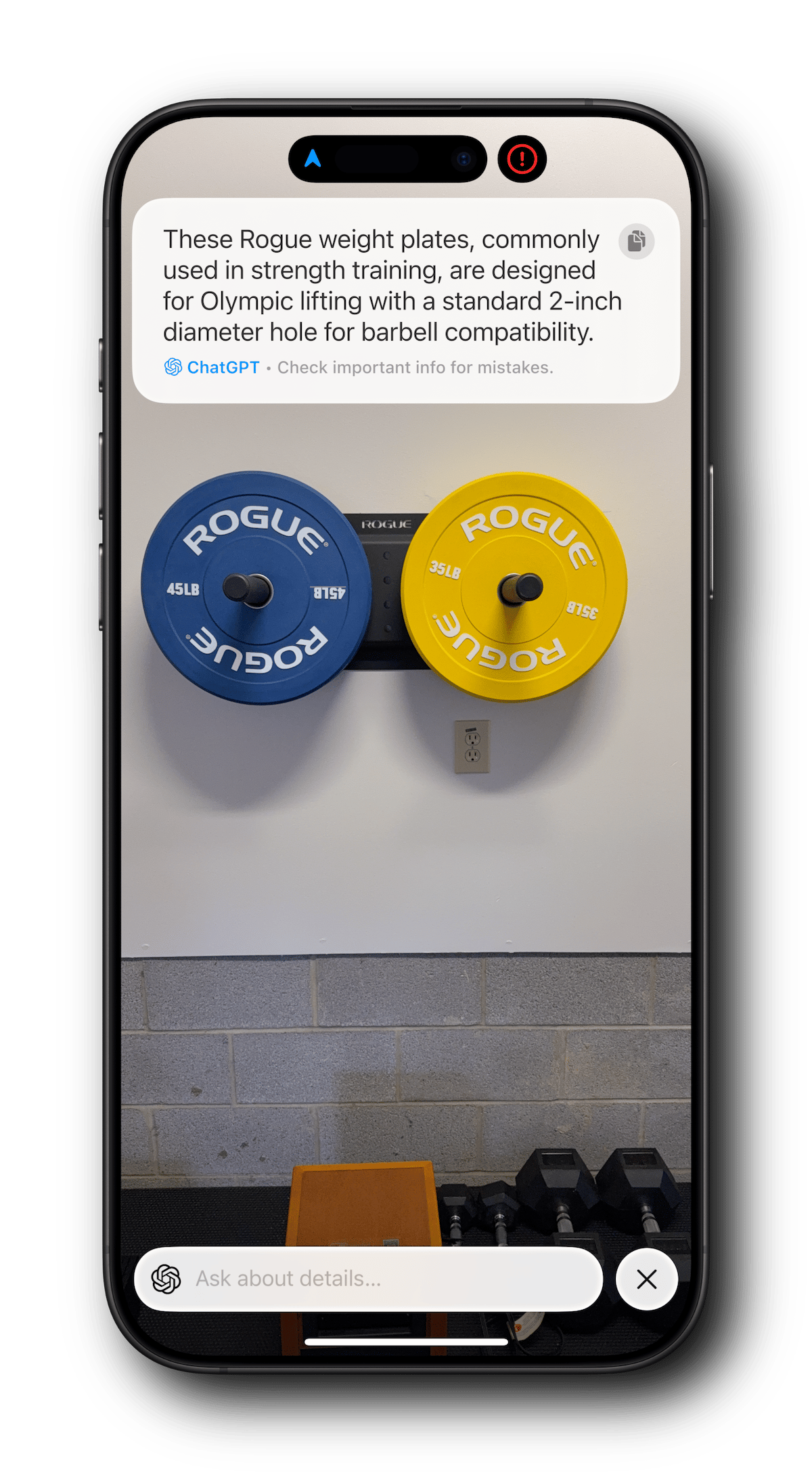
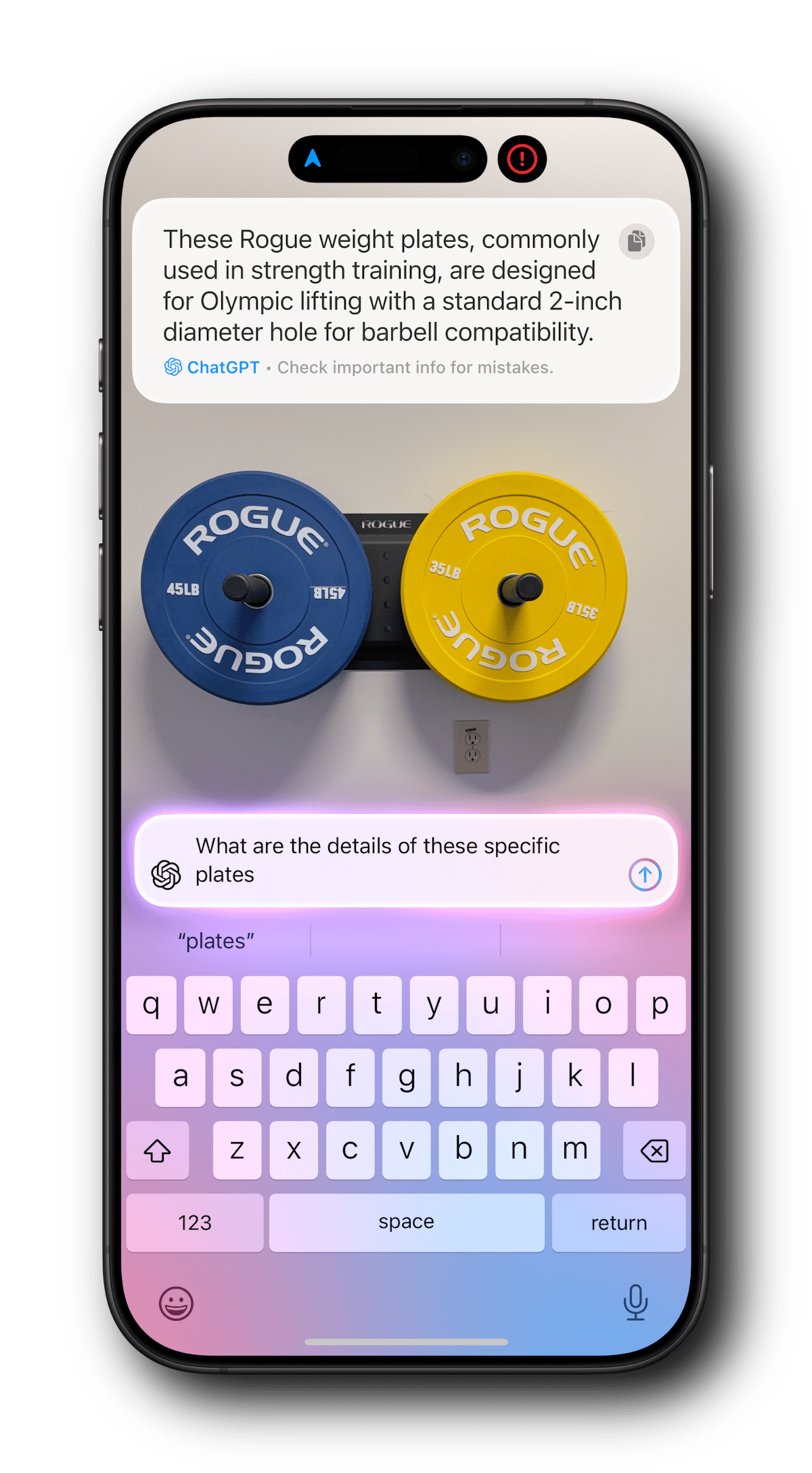
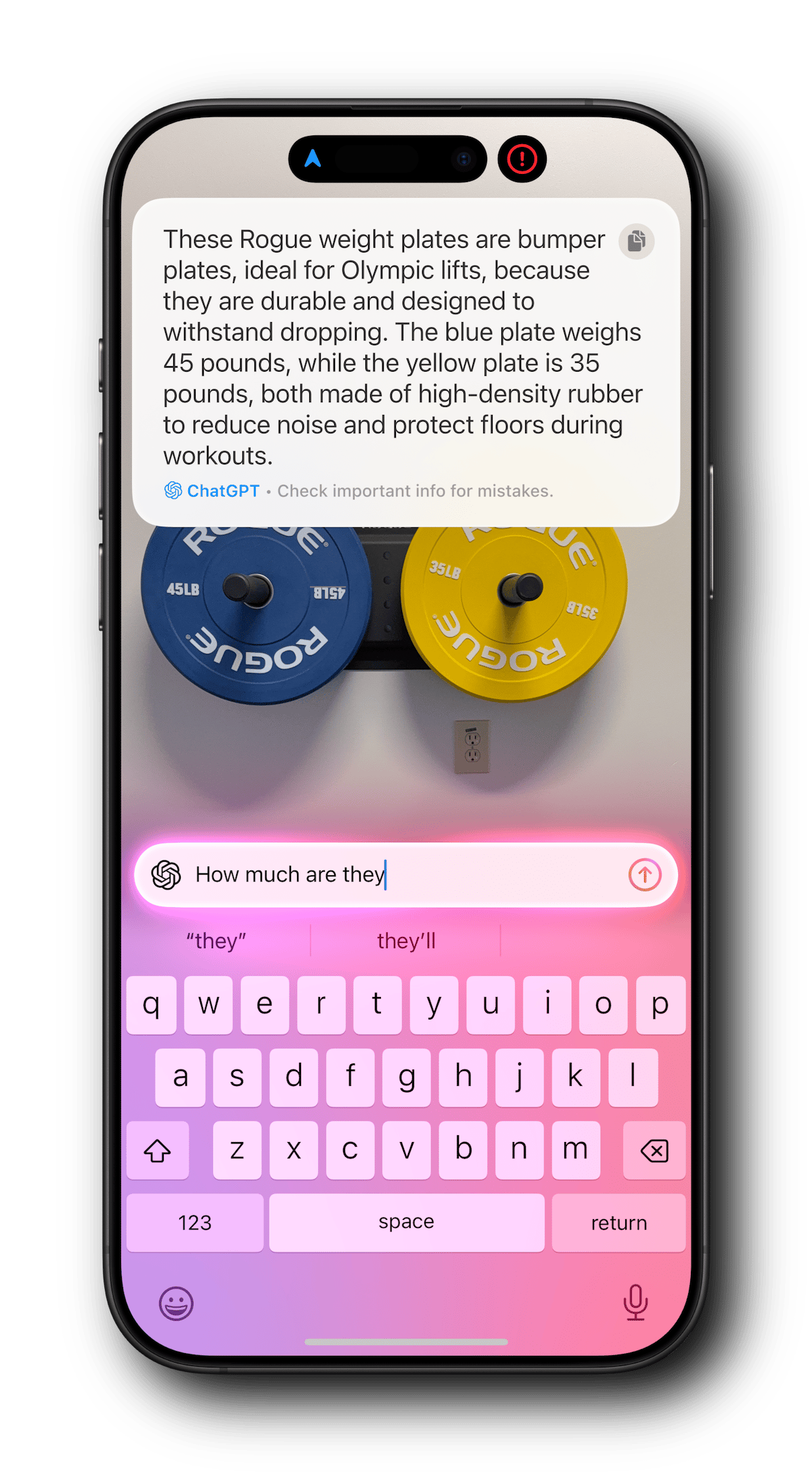
Now let's go over to the ChatGPT app, take a photo of the weights, and see what it gives us.
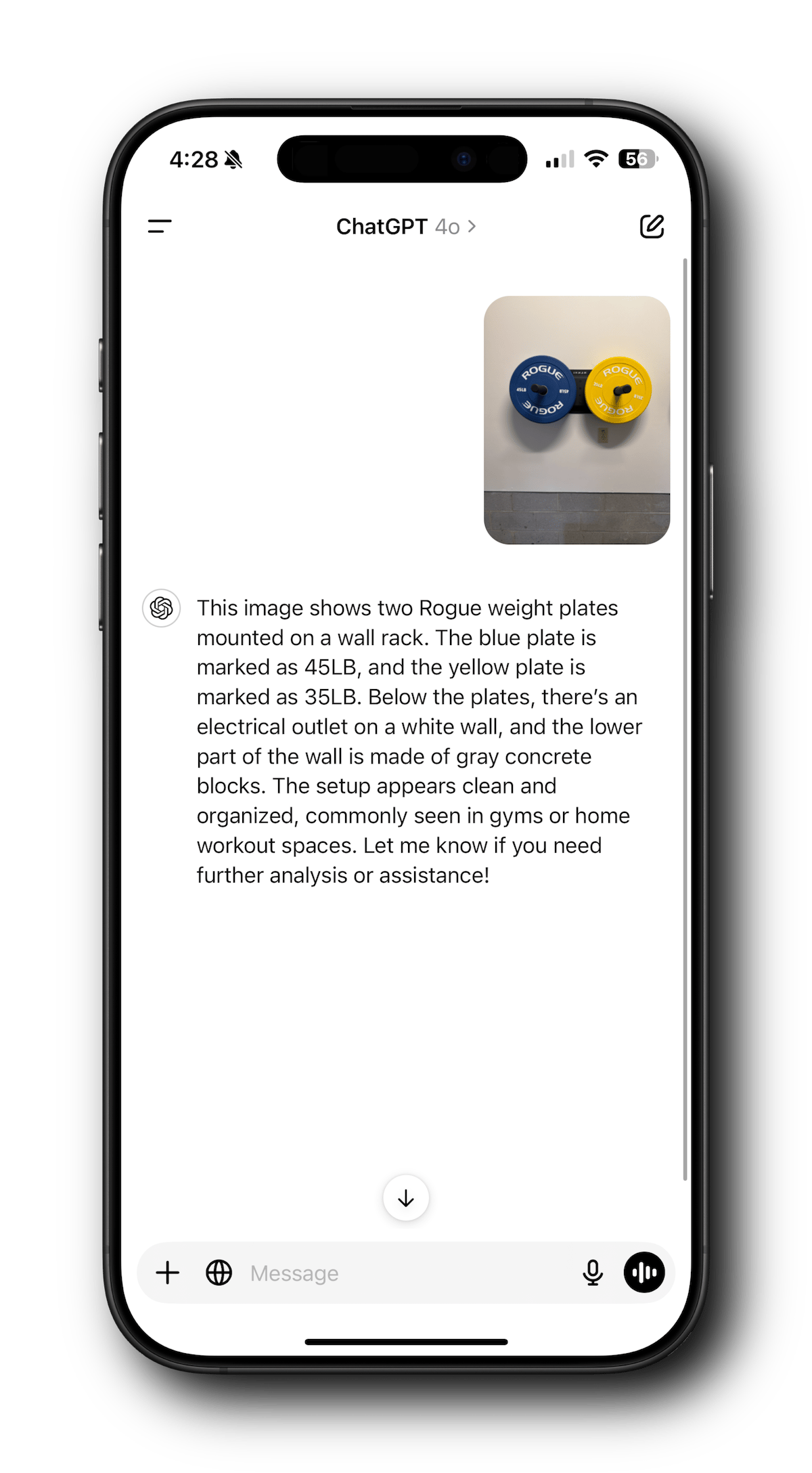
Like with Visual Intelligence, you can ask follow up questions in ChatGPT.
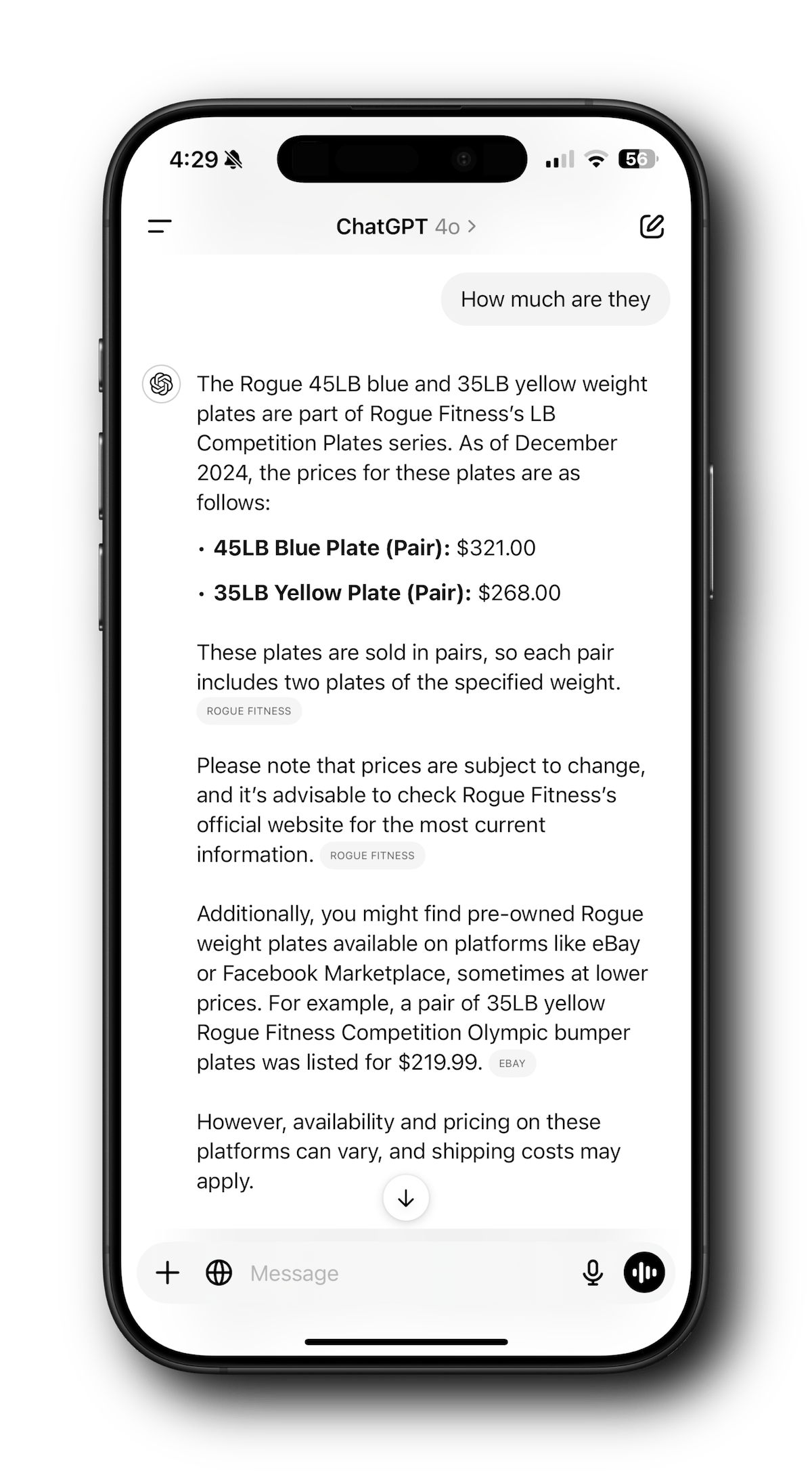
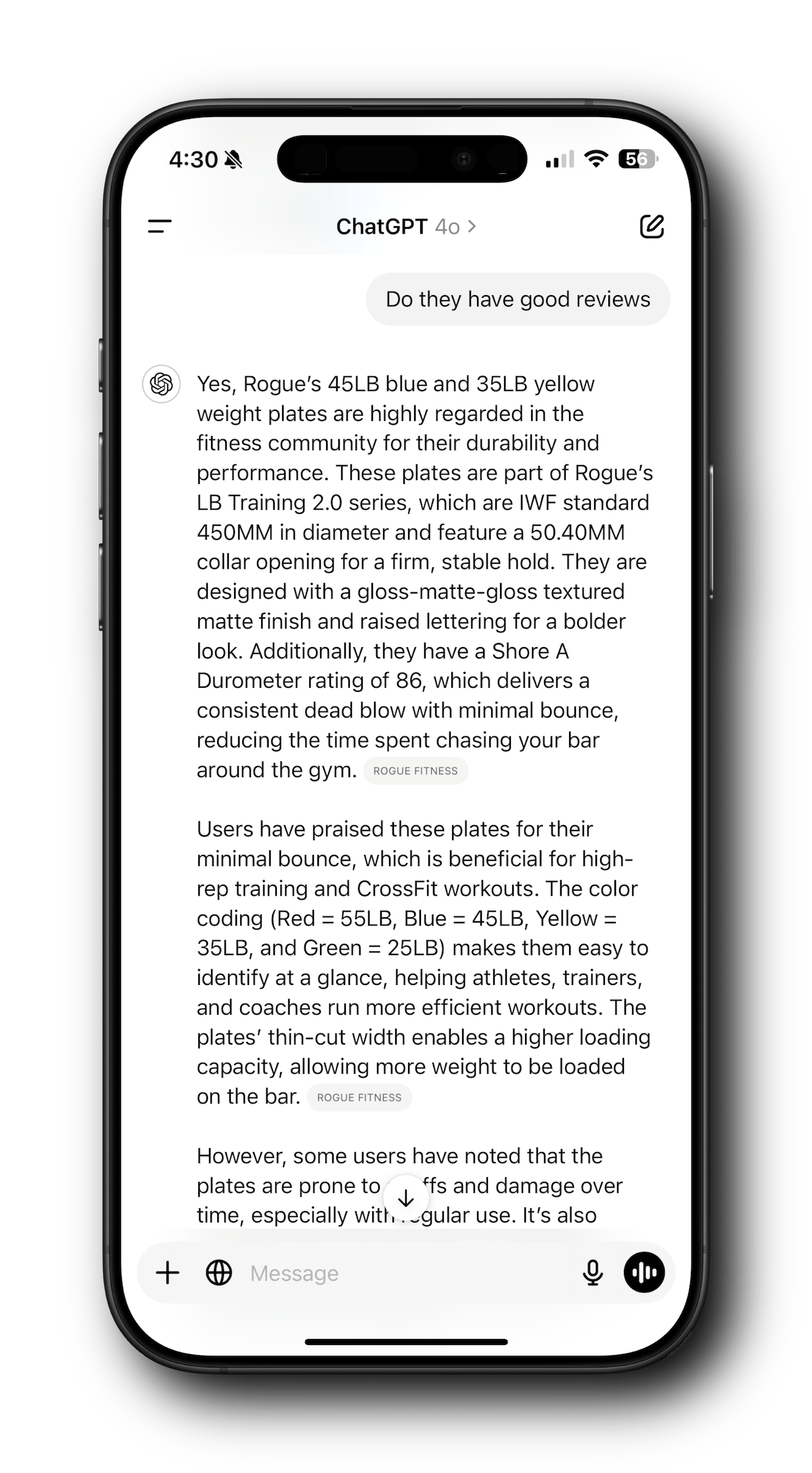
As you can see, the native ChatGPT experience returns more information, including helpful tips such as checking on Facebook Marketplace to potentially save some cash on the weights.
It appears Apple made a design decision to keep the information returned brief. This makes it quick to read, but it can leave out a considerable amount of information compared to the native ChatGPT app/web experience. This is not necessarily a bad decision, but be aware that you may need to ask more questions to turn up the information you want.
Overall, I think Visual Intelligence is off to a good start. It's fast and easy to access, and simple enough to use, though a few times I inadvertently touched in the wrong area and my session closed which is frustrating. A confirmation dialog may be the answer for that.
It's unfortunate Apple hasn't made it available on the iPhone 15 Pro and Pro Max, which support Apple Intelligence, but perhaps that will happen in a future update. I would like to have a proper Visual Intelligence app that could serve as an archive of my previous interactions, much like how Shazam stores the songs I've had it listen to. All in all, I'll give the service a solid B grade right now.