

Apple introduced the Action Button on the iPhone 15 Pro and Pro Max, and it's available on the entire iPhone 16 family of phones.
If you have it, you're probably already using it for something—maybe launching the flashlight, starting a voice memo, or toggling silent mode. But did you know you can go even further?
With a few simple steps, you can set up a folder in Shortcuts, Apple's powerful automation tool, and turn the Action Button into a customizable, multi-function launcher.
Here's how to do it.
📂 Step 1: Build Your Folder of Shortcuts
First, group your favorite shortcuts in one place. Think about what you'd want quick access to during the day. Here are some examples to help spur your creativity:
- Open a specific note in the Notes app
- Open the Camera in Portrait Mode
- Toggle a Focus mode
- Trigger a HomeKit scene (like "Lights Off")
- Identify a song with Shazam
Now that you have some shortcuts in mind, let's make a folder to hold them.
(Don't worry about the shortcuts you've selected being perfect right away. You can change them anytime by going back to the Shortcuts app and moving things in or out of the folder you're going to make below.)
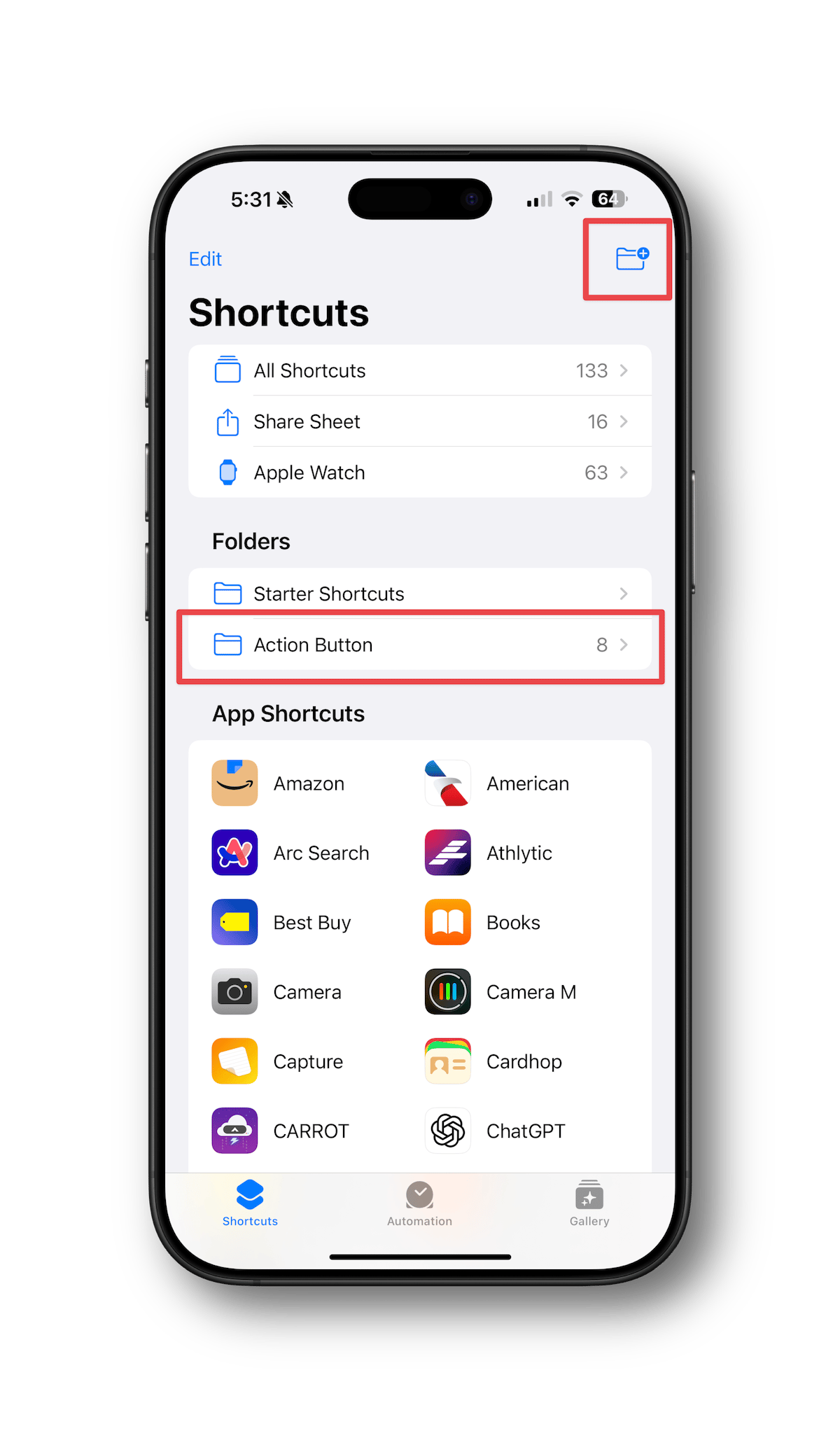
To create the folder:
- Open the Shortcuts app.
- On the Shortcuts home screen, tap the folder icon in the top-right to create a new folder.
- Name your folder something easy to remember—like "Action Button."
- Move your go-to shortcuts into that folder: from the "All Shortcuts" screen, tap Select in the top-right, choose up to 8 shortcuts you want to use, then tap Move in the lower-center and select the folder you just created.
(While you can add more than 8 shortcuts to the folder, only 8 will display in the window when triggered by the Action Button.)
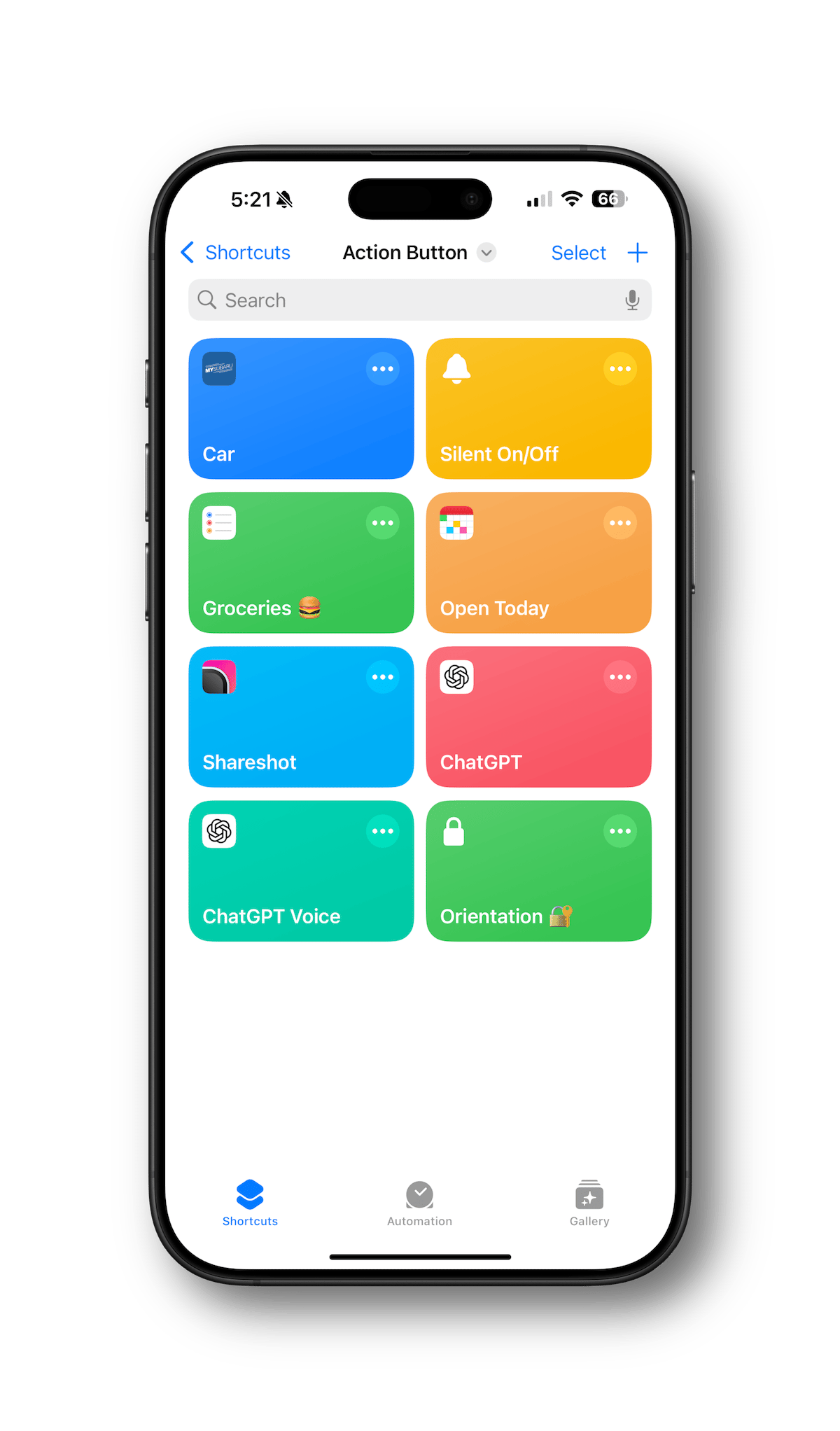
🛠️ Step 2: Configure the Action Button
Now let's set up the Action Button to display the folder:
- Go back to your home screen.
- Go to Settings > Action Button.
- Swipe left or right until you see the Shortcut option.
- Tap to choose a shortcut.
- Select "Show Folder…" and choose the Action Button folder you made earlier.
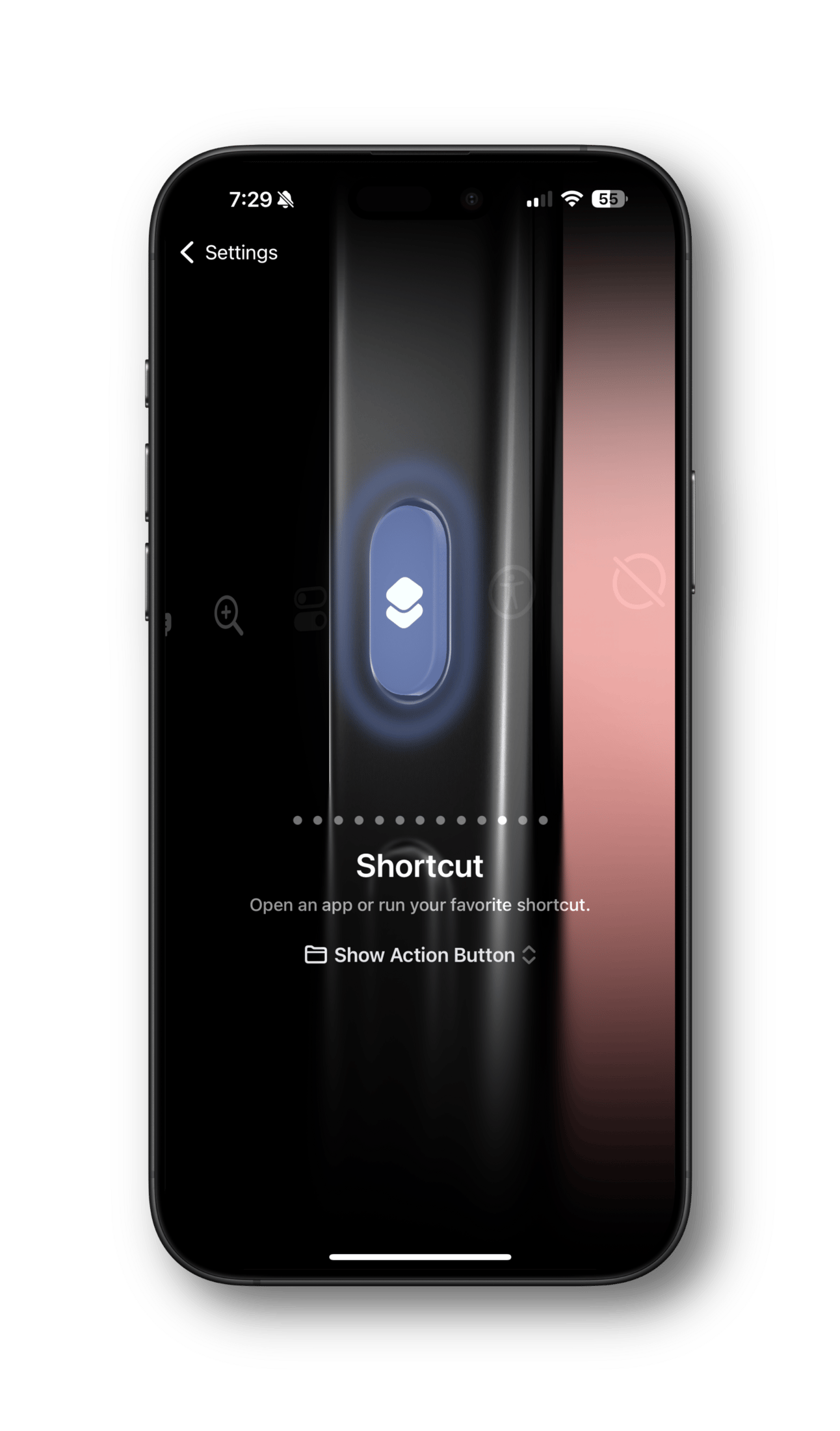
✅ Step 3: Test It Out
Now press and hold the Action Button on your iPhone to confirm it's working properly. When you do, you should see the folder of shortcuts displayed in a pop-over window.
Tap on any of the shortcuts in the window to run them.
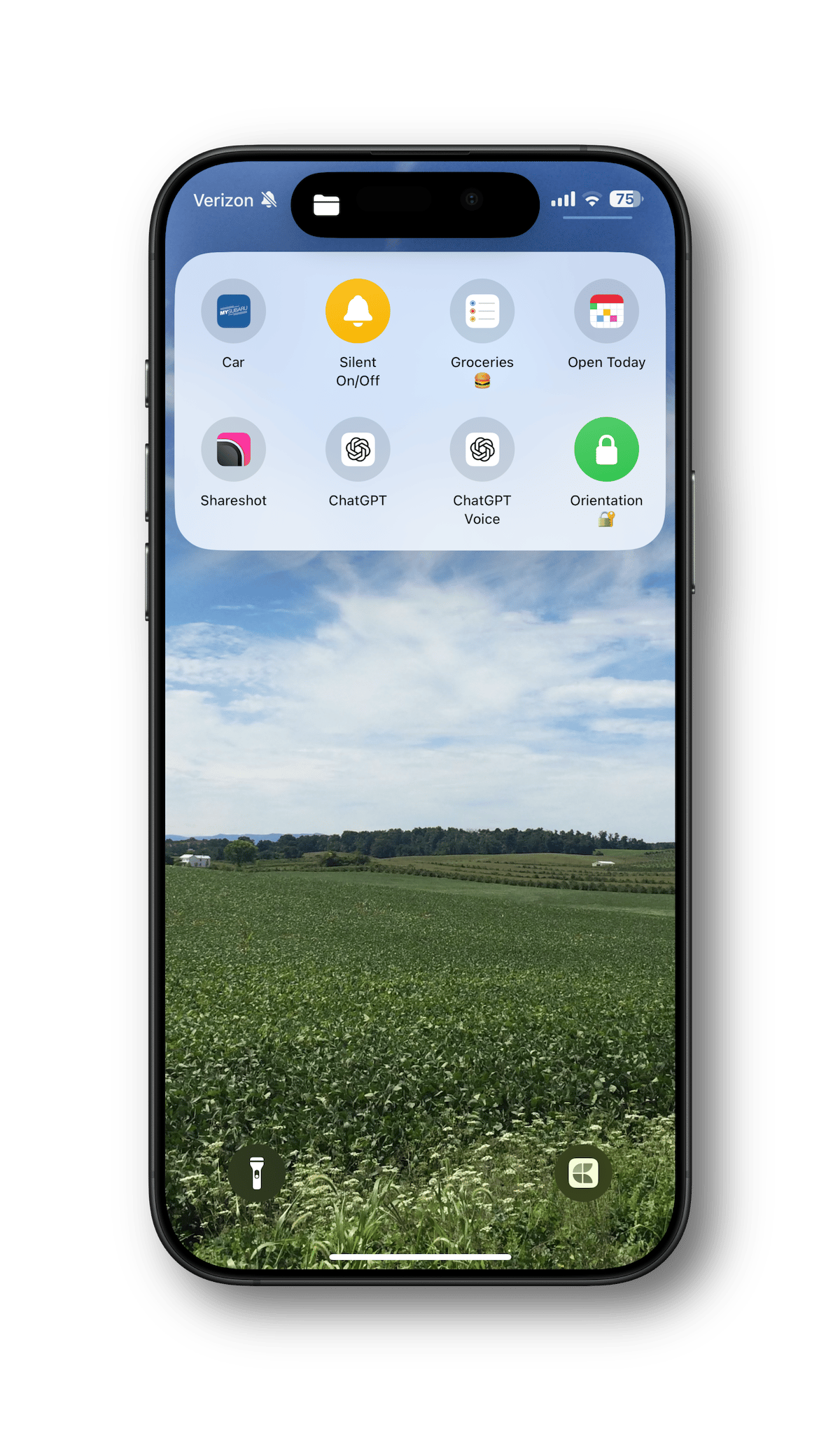
👉️ Bonus Tip: Don't have an Action Button?
So you think this sounds great, and you'd love to have it, but you don't have an Action Button on your phone. No worries; I got you.
You can use a Lock Screen widget to do the same thing!
Here's how:
- Go through Step 1 above to create your Shortcuts folder and add your favorite shortcuts.
- Press and hold on your Lock Screen and then tap on Customize.
- Tap Lock Screen.
- Add a widget in an available location by tapping in the placeholder container.
- In the Add Widget screen, scroll down to Shortcuts and tap the icon to add the widget.
- Tap the widget you just added to choose a shortcut.
- Tap "Show Folder…" and select the Action Button folder.
- Dismiss any open windows and tap the blue "Done" button to save your changes.
- Test it out by tapping and holding the Shortcuts widget on the Lock Screen to see the shortcuts folder displayed in a pop-over window.
👉️👉️ Bonus Tip #2: Just Getting Started With Shortcuts?
If you're new to Shortcuts, I suggest watching this video from Stephen Robles and also checking out Matthew Cassinelli's site. (Matthew worked on Shortcuts at Apple, and even before, when it was still called Workflow before Apple bought the company.)
Hope this helps and let me know what you come up with! If you're on a roll with iPhone tweaks, you might also like another small iPhone setting with a big payoff and this Messages feature I use constantly.